
In my last post I wrote about the documentation and Ask assistant that now live inside ARMOR. Version 1.3 is about getting things out of the app. You can now record robot simulation video and take photos straight from the 3D view, in the virtual scene or in augmented reality, and save them to your Photos library. The part I most want you to try is selfie mode, which lets you photograph or film yourself standing next to your simulated robot in augmented reality.
Tying back to the v1.2 update, Ask-mode can use a larger model running in Apple’s Private Cloud Compute, solver errors now explain what went wrong in plain language, and big robots open faster. This means the ARMOR AI assistant is getting smarter with each release!
If this is your first time here, ARMOR (AR Mobile Robotics) is an app for loading URDF robot models and simulating them with the MuJoCo physics engine on iPhone, iPad and Mac, including in augmented reality.


Release at a glance
| Version | 1.3 |
| Released | November 6, 2026 |
| Platforms | iPhone, iPad, Mac |
| Headlines | Selfie mode in AR, capture mode for photo and video, Private Cloud Compute for Ask, plain-language solver errors, faster mesh loading |
Record Robot Simulation Video and Photos
iOS already has built-in screen recording, and you could always use it on ARMOR. Capture mode builds the same thing into the app, so it can do what a screen recording cannot: record only the 3D scene without the buttons, save a photo with a transparent background, and, in selfie mode, switch to the front camera. The new camera button in the bottom-left cluster of the 3D view enters capture mode. The playback, camera and creator controls step out of the way, and a bar like the one in the Camera app takes over, with VIDEO and PHOTO labels, a shutter button and a way out. Play and reset stay on screen, so you can start the simulation and record it in the same view. The first time you open it, a tip labeled Capture Mode points at the button.
In the Virtual tab, a photo is a transparent PNG that includes the grid, axes, ground plane and any world objects, so it drops onto a slide or a web page without a background to cut out. In the Spatial tab, the photo is a HEIC image over the camera feed. Video records the 3D scene to a .mov file (HEVC, with H.264 as a fallback), and only the 3D view is recorded, not the capture controls. Video is silent for now. A recording is always finished and saved if you leave the 3D view, switch tabs, background the app or open an editor sheet, and one too short to contain a frame is reported instead of saved empty.

Free users get a greyscale, semi-transparent ARMOR icon and wordmark in the bottom-right corner of each capture. Premium removes it.
By default captures go to your Photos library. The Captures section of the editor has a Save Captures To setting with Photos, ARMOR Only and Ask Each Time, and if Photos access is denied, ARMOR keeps the capture itself and tells you so. Captures kept in ARMOR stay on that device and do not sync, which the app says plainly. Either way, a capture lives in exactly one place.
The Captures gallery, opened from the thumbnail in the capture bar or from Open Captures in the editor, is a grid of everything you have taken, newest first. Tap one to open it, swipe between captures, and use Share or Delete. The Edit button lets you give a capture a name and notes. If you later delete the original in Photos, the entry says No Longer in Photos and offers Remove Entry. A capture in Photos also gets an Open Photos button; iOS has no supported way to open one specific photo, so it opens the Photos app and you find it from there.

Take a Selfie with Your Robot in Augmented Reality
This is the part of v1.3 I most want you to try. In the Spatial tab, selfie mode puts the robot in the picture with you, so you can take a photo or record a video of yourself standing next to a simulated robot. It is a Premium feature, a flip-camera button beside VIDEO and PHOTO that switches to the front camera, and it appears only on iPhones and iPads that support face and world tracking at once. ARMOR re-anchors the robot to its current spot in the room first, so it should stay where it is, facing the same way, while you turn around. Treat that as best effort: the front camera has no plane detection and uses motion tracking only, so the robot can drift. For the same reason, one-finger drag is off in selfie mode, though rotate and pinch to scale still work. If tracking is lost, Place in Front of Me puts the robot about a metre ahead and half a metre below the phone, upright.
Selfie captures are saved the way other people would see them, flipped back from the mirror-style preview, like the Camera app does. The Mirror Selfie Captures switch in the editor keeps them as previewed instead. The watermark on free captures is never mirrored.

I have tested capture mode for photos, video, the gallery and selfie mode on an iPhone, and selfie mode is the one I would start with. I have not checked the same flows on iPad or Mac, so if you try it there, I would like to hear how it goes.
A Larger Model for Ask: Private Cloud Compute
Ask in v1.2 ran only on the device, on Apple’s small on-device model. In v1.3 you can choose what answers. A new Assistant section in the project editor, and a model menu in the Ask header, offer On-Device, Private Cloud Compute and Automatic. The two controls share one setting. Automatic is the default: it uses Private Cloud Compute when it is available and falls back to the on-device model when it is not.
Private Cloud Compute needs a device with Apple Intelligence running iOS or macOS 27, and an internet connection. On anything else, Ask keeps answering on the device as before. I want to be plain about what is sent: the question, plus a computed summary of the robot you have loaded, goes to Apple’s Private Cloud Compute, which does not store it. Apple also limits how much each person can use per day, tied to iCloud, with more headroom on iCloud+. When you are close to the limit or past it, Ask shows a note, and Show Options opens Apple’s options for it. If the cloud model fails in Automatic mode, Ask quietly falls back to the on-device model with a one-line note. If you chose Private Cloud Compute explicitly, it tells you what went wrong instead of switching on its own.
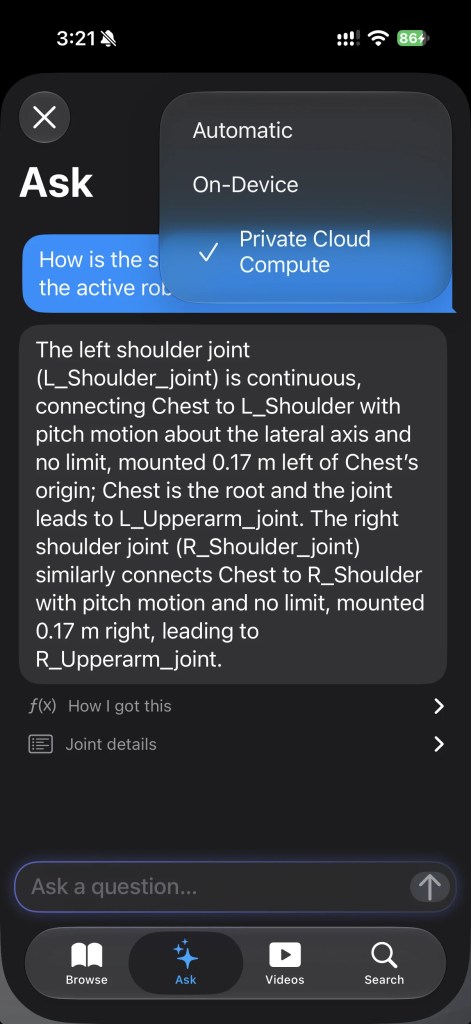
The bigger model changes how I could build the answers. Ask now sizes the evidence it sends from the model’s real context window, so devices with the larger on-device window on iOS 27 also get more per question. A docs question on Private Cloud Compute is answered in one call from the whole best page plus the ranked sections, with light reasoning, and the draft-and-rewrite pass from v1.2 is not needed.
Questions about your robot are the bigger change. Before, Ask worked from the facts of the joints you named. Now, on Private Cloud Compute, it also sees a computed outline of every link and joint, including the root link and a Form section worked out in Swift from the link frames at the zero pose: the trunk, the limbs with their direction and reach, left and right mirrored pairs, the frame extent, and whether the robot stands upright. So Ask can say “a biped humanoid with two arms, two legs and a head” instead of hedging from link names. AgiBot’s X2 is the robot that prompted it. A question like “How tall is it?”, which the docs do not cover, is now treated as a question about your robot instead of opening with an apology about the documentation. Heights come from link frame positions only, so they can read slightly low.
Robot answers are meant to be confident and short, about three sentences at most. The steps and numbers sit in a collapsed How I got this control under the bubble, in the six languages ARMOR supports. As in v1.2, the exact values come from the robot’s data and not from the model, and a model can still get a minor detail wrong, so check the numbers there.
One quirk is worth knowing about. Private Cloud Compute’s safety guardrail sometimes throws on innocent questions when reasoning is turned on, such as “Which link is the root of the robot?”. ARMOR now retries once without reasoning, and in Automatic mode hands the question to the on-device model if that is empty too. The reason I wanted a cloud option at all is the context window: it is much larger than the on-device model’s, so Ask can handle more complex questions, such as ones that span a whole robot.
Solver Errors That Explain What Went Wrong
When MuJoCo refuses to load or run a model, it says so in its own terms, which are precise but not always helpful. The error overlay now sorts each failure into a plain-language category and tells you what happened, naming the specific link, joint or mesh where MuJoCo reported one, including in multi-robot scenes where MuJoCo prefixes every element name. The categories are a missing mesh, an unreadable mesh file, an invalid inertia tensor, a degenerate collision mesh, a zero-size box, cylinder or sphere, a disconnected joint tree, a zero-length joint axis, a joint attached to the world frame, a simulation that became unstable, a solver that ran out of memory, and a catch-all for anything else. MuJoCo’s own text is still there in a collapsed Details section that you can select and paste into a bug report.
The buttons depend on the error. For an unstable simulation there is Halve Timestep (down to 0.0001 s, recompiled in place without reloading meshes) and World Settings. Most errors get Learn More, which opens the matching section of the new Troubleshooting Simulation Errors page in the help. Errors with no specific advice get Report Problem, which opens an email with the robot name, the solver phase and MuJoCo’s text filled in. Fix This for invalid inertia works as it did in v1.2.
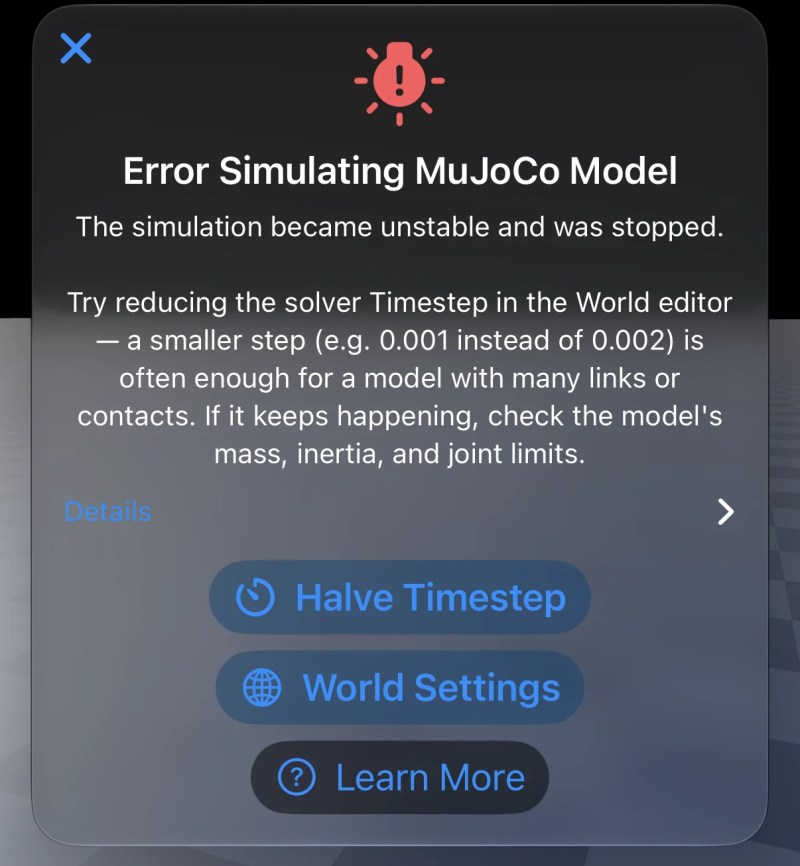
Two of the changes came from getting the advice wrong. “Solver ran out of memory” is now its own message, because every mid-run engine error used to be reported as “the simulation became unstable, reduce the timestep”, which is the wrong advice for running out of memory. And an instability error now names the joint behind the offending degree of freedom instead of a bare index, and mentions near-singular inertia or a full contact buffer when MuJoCo reported one, since those are the usual real causes.
The help links can now point at a section of a page, so Learn More lands you on the right heading, and the same works from the editor’s “?” buttons. The troubleshooting page is available in German, Spanish, French, Italian and Portuguese along with the rest of the help.
Big Robots Open Faster
Parsing a large DAE, OBJ or glTF mesh can take seconds, and it happens on every cold launch. In v1.3, a mesh that takes 300 ms or more to parse is saved in a cache on the device in RealityKit’s own format, and the next launch reads that instead. It is keyed by the contents of the mesh and the texture files it uses, and by the app build, so a changed file or a parser fix in an update cannot serve a stale result. The cache is trimmed to 500 MB, and a corrupt entry is deleted and parsed again. STL, USDZ and GLB meshes are not cached, because reading the cache costs about what parsing them does.
The gain depends on how complex the mesh is and which format it comes in, and in my testing a cached mesh loaded anywhere from several times to tens of times faster. The biggest wins are on robots with large DAE meshes, such as Unitree’s Go1 and Go2, and ANYbotics’ ANYmal also opens noticeably quicker. Across the 76 meshes I checked, every cached copy matched the original in vertices, materials, textures and bounds. The first launch after an import still pays the parsing cost once.
Multi-Robot Projects and More Robots That Import Correctly
Version 1.2 added multi-robot worlds, and v1.3 smooths out a few of the rough edges that showed up when people used them.
- Deleting a robot no longer deletes meshes another robot in the project still needs, which could leave the remaining robot with a missing mesh error.
- A robot added in the placement wizard shows its real name immediately, and new robots start clear of the ones already in the scene, using an estimated footprint for each link. Very large or oddly shaped robots may still need a nudge in the Position fields.
- The MJCF view in the XML tab no longer freezes on multi-robot projects, and multi-robot exports keep the OBJ and DAE textures of the second and later robots.
- Unitree’s H2, and any URDF that declares the same material name more than once, now compiles to MJCF.
- Mondo Robotics’ BENI imports with its texture instead of plain white. Its URDF names the texture only in a material, and its OBJ meshes have UV coordinates but no material file, so ARMOR ignored it. A texture named in the URDF now applies to an OBJ like that when the file is present.
- HighTorque Robotics’ Mini Pi and Mini Pi+ no longer trigger a “placeholder geometry” warning in the XML tab for meshes they never use, which their URDFs had commented out.
- ABB’s YuMi and HighTorque’s Mini Hi were re-imported from the live gallery and checked again, along with the Mini Pi robots, and all load and compile.
Other Fixes and Refinements
- Help: the bundled documentation is refreshed to the latest website (33 pages, including Mass and Inertia, Contact Parameters and the built-in help tutorial), in all six languages. The small help button in the 3D view now opens the page for the mode you are in; it always opened the XML Viewer page before.
- Keyboard: tapping outside the text field, or scrolling, dismisses the keyboard in Ask and in Search.
- Localization: the error overlay headings are localized again, about 22 new overlay strings are translated, and Portuguese now says “junta” for joint everywhere. The translations are machine-made and reviewed by AI agents, not yet by native speakers. If you read one of these languages and spot something off, tell me.
- Layout: the project description on iPhone stacks its label above the text and can wrap onto several lines, and the sidebar logo is smaller on iPhone with iOS 27 so it no longer pokes out under the title bar.
- Under the hood: RealityKit physics is gone, and MuJoCo is the only simulator. Existing projects load unchanged, and the Solver settings for RealityKit iterations are removed.
Where ARMOR Goes Next
Version 1.4 will focus on the editing interface, including tapping to select links directly in the 3D view and a tree-based view of the URDF. In the meantime, if you record something with the new capture mode, I would like to see it. Download ARMOR on the App Store, browse the gallery, and keep watching this blog.
Check out more posts about ARMOR
- Built-In Docs and AI Assistant for Robot Simulation; ARMOR v1.2 Release Notes
- 100+ URDF Models, High Quality and Simulation-Ready in the New AR Mobile Robotics Gallery
- Gallery Deep Links, Native Xacro Support, and ROS 2 Control Actuators; ARMOR v1.1 Release Notes
- ARMOR Arrives on Mac with Native MuJoCo Simulation Across All Your Apple Devices
- Multi-Robot MuJoCo Worlds on iOS, ARMOR is Live on the App Store!
- URDF to MuJoCo Export and Simulation Worlds; ARMOR v0.12 Release Notes