
In my last post, about the ARMOR Robot Gallery, I mentioned two editor features and an embedded help system that was still in development. The help system is the headline of this release. ARMOR v1.2 brings built-in docs and AI assistant answers into the app, on iPhone, iPad and Mac, and the docs work without an internet connection. The two editor features are here too, along with in-app gallery browsing and simulation of mimic joints.
If this is your first time here, ARMOR (AR Mobile Robotics) is an app for loading URDF robot models and simulating them with the MuJoCo physics engine on iPhone, iPad and Mac, including in augmented reality. You can get it on the App Store.


Release at a glance
| Version | 1.2 |
| Released | 10 October, 2026 |
| Platforms | iPhone, iPad, Mac |
| Headlines | Built-in docs and Ask assistant, mass and inertia from mesh, default controllers, in-app gallery, mimic joints |
Built-In Docs and AI Assistant Inside ARMOR
ARMOR now bundles the full documentation from the official ARMOR site, so the text works offline (the built-in help page walks through every tab). It opens as a window on the Mac and a sheet on iOS, from the sidebar’s Help button, from the robot toolbar, and from small “?” buttons placed next to the things they explain: the Materials, Links and Joints sections, each part of the World editor, the Semantic editor, and the Link and Joint creators. Tap one and you land on the matching page.

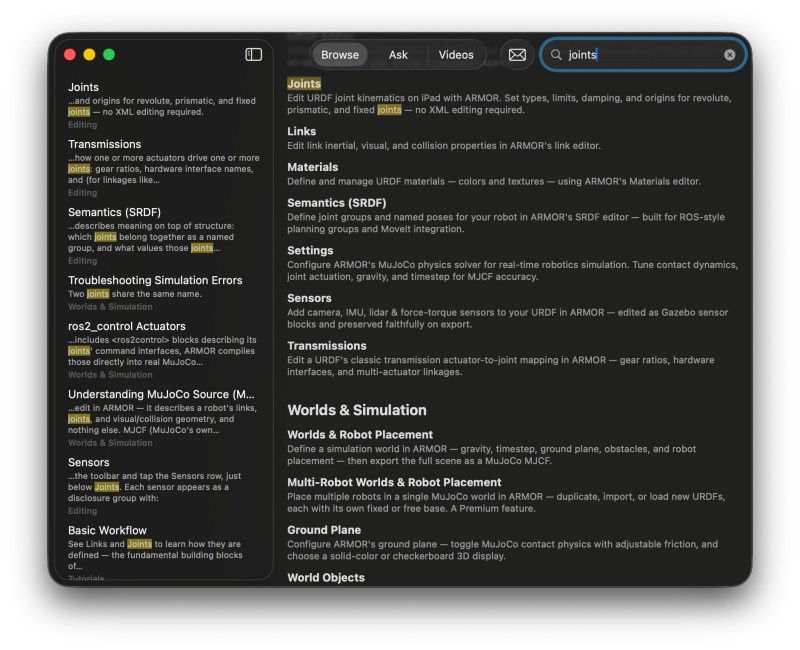
There are three tabs on the help screen. Browse is a searchable page list. On the Mac and iPad it stays on screen as a sidebar, and on iPhone Browse shows the list and search is a separate button beside the tab bar. Search ranks a match in a title above one in a description or the body, ignores filler words, and highlights your terms in the page, scrolling to the first one. Very common words like “URDF” or “robot” cannot match everything, and a page named exactly after your search beats longer titles that merely contain it.
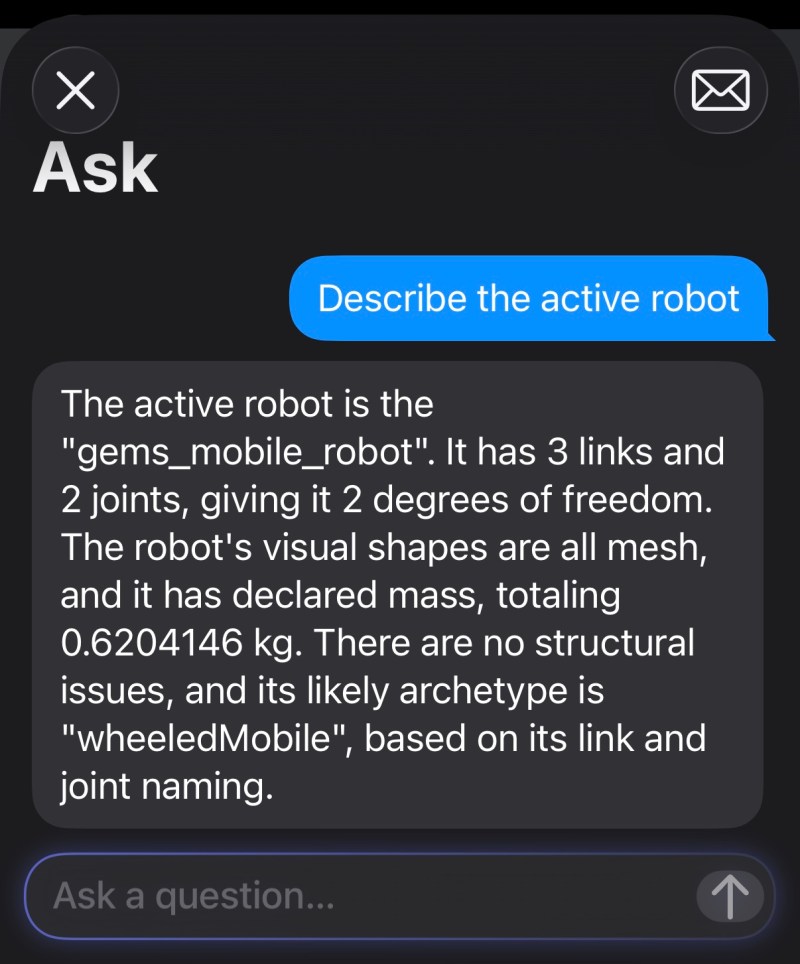
Ask is a Messages-style chat that runs entirely on the device, built on Apple’s Foundation Models (it needs iOS or macOS 26). Ask a question about the docs and it finds the most relevant sections, has the on-device model write a short answer from them, and ends with Read More links to the pages those sections came from. Ask about the robot you have loaded, such as how a joint moves or what it is connected to, and it answers from the robot’s own data, with the exact values in a collapsed Joint details section. If the model is unavailable, slow, or fails, Ask falls back to short summaries of the best-matching pages. When a question about your robot needs the model and it cannot run, Ask tells you why: the device is not eligible, Apple Intelligence is switched off, or the model is not ready yet.

Videos collects the workflow guides from my YouTube channel, and YouTube links inside the docs now show up as thumbnail cards instead of plain links. A Feedback button is always available, too.
How the Docs and Ask Work Together
Ask mixes ordinary code with Apple’s on-device model, so it is worth spelling out which part does what. The first diagram follows the docs from the website into the app, and the second follows a question through Ask.

The docs start as Markdown pages on the website’s branch of the ARMOR repository. A script reads them straight from git and converts what would not survive the trip: images become links that load on demand, YouTube embeds become tap-to-watch links, and relative links are rewritten so they work from inside the app. The result is one bundled file of pages, which ships inside the app. The text works offline; images and videos need a connection when you open them.
The translated docs are produced ahead of time, not on your device. AI agents translate each page into German, Spanish, French, Italian and Portuguese, using a glossary pulled from the app’s own interface strings. A check then confirms that each translated page has the same headings, tables, links and code as the English original. Which language you see follows your app language, a page without a translation falls back to English, and Ask’s search and replies follow your language as well.

The first time you use Ask, the help is split into heading-sized sections and searched two ways at once: BM25 keyword ranking catches exact terms like “MJCF”, and Apple’s on-device sentence embeddings catch paraphrases like “my robot falls through the floor”. The merged results are packed into the on-device model’s small context window, and the model writes a short answer from them. Swift code, not the model, runs that loop and attaches the Read More links, so they always point at real pages, and if the model is unavailable or fails, Ask falls back to page summaries. Questions about your loaded robot take a different route: code works out each joint’s connections, axis and range first, the model only puts those facts into words, and the exact values appear in the collapsed Joint details section. This is a small model grounded by deterministic scaffolding, not an AI that knows your robot, so it can still miss a minor detail, which is why the numbers come from your robot’s data and not from the model.
Estimate Mass and Inertia from Mesh
Plenty of URDF files in the wild arrive with every mass set to zero, or with inertial blocks omitted. NASA/JPL’s Perseverance and Ingenuity models are a good example: the meshes are detailed, and the inertial blocks are zeroed out.
The new Estimate from Geometry button in the inertial editor works from the actual 3D mesh. It splits the mesh into tetrahedrons, computes the volume, centroid and inertia of each one, and sums them over the whole body with the parallel axis theorem, using a default density of 1,000 kg/m³. A curved link is no longer treated as its bounding box. If a mesh is not watertight, or cannot be measured, ARMOR falls back to the bounding box automatically, so you always get a number.

By default it measures the collision geometry, since that is the body MuJoCo simulates, and the Estimate Mass sheet lets you switch to the visual geometry. You can run it on one link, or tap Estimate All Masses at the bottom of the Links section to do the whole robot at once. Links with no geometry at all, which is most of Perseverance, still get a mass: a slender bar as long as the farthest attached joint, or a 0.01 kg placeholder, and the sheet marks those rows in orange so you know they are guesses. When you import a robot from the gallery and it has no usable mass data, ARMOR now offers to run the estimate for you. There is also an editable total mass field: type the real weight of your robot and every link is rescaled proportionally.

Some robots ship with an inertia tensor that is physically impossible, and MuJoCo refuses to compile it with the error “Inertia must satisfy A + B >= C.” The STAR1 humanoid is one. For these, the link’s Inertial tab now shows a Fix Inertia button, which opens a sheet listing each of the six tensor values from current to corrected, with Confirm and Cancel. Fix All Inertias, next to Estimate All Masses, scans the whole robot and applies the same correction to every link that needs it. Under the hood, it solves for the tensor’s real principal moments and nudges only the offending one back into a valid range, then reconstructs the tensor in the link’s original frame. The same Fix This button now appears directly on the error message when this problem stops a simulation from loading.

Add Default Controllers to a Whole Robot
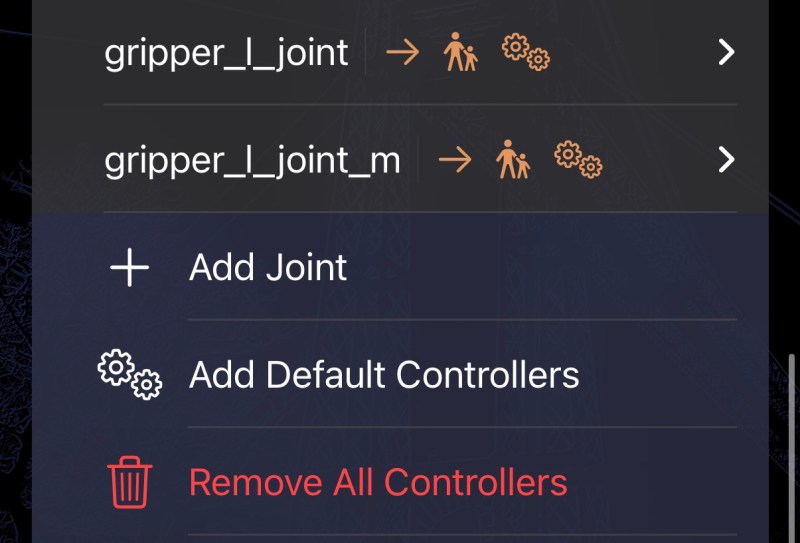
Version 1.1 added ros2_control actuators. In v1.2, Add Default Controllers, in the Joints section of the robot editor, works on the whole robot at once (the actuators page has the details). Floating joints and joints with no mass data are skipped. The gains are computed from each joint’s effective inertia: the sum of all the bodies hanging off the free side of that joint, with a default natural frequency used to pick proportional and derivative gains. Remove All Controllers undoes it.
Generated actuators now also get a sensible force or torque limit, taken from the joint’s own URDF effort limit when there is one, or else derived from its gain and range, so a controller can no longer ask for unlimited torque.
If a simulation does go numerically unstable, ARMOR now catches it and shows an error with an explanation and suggestions, such as reducing the solver timestep, instead of letting the pose quietly snap back with no indication anything went wrong.
Import from Gallery, Inside the App
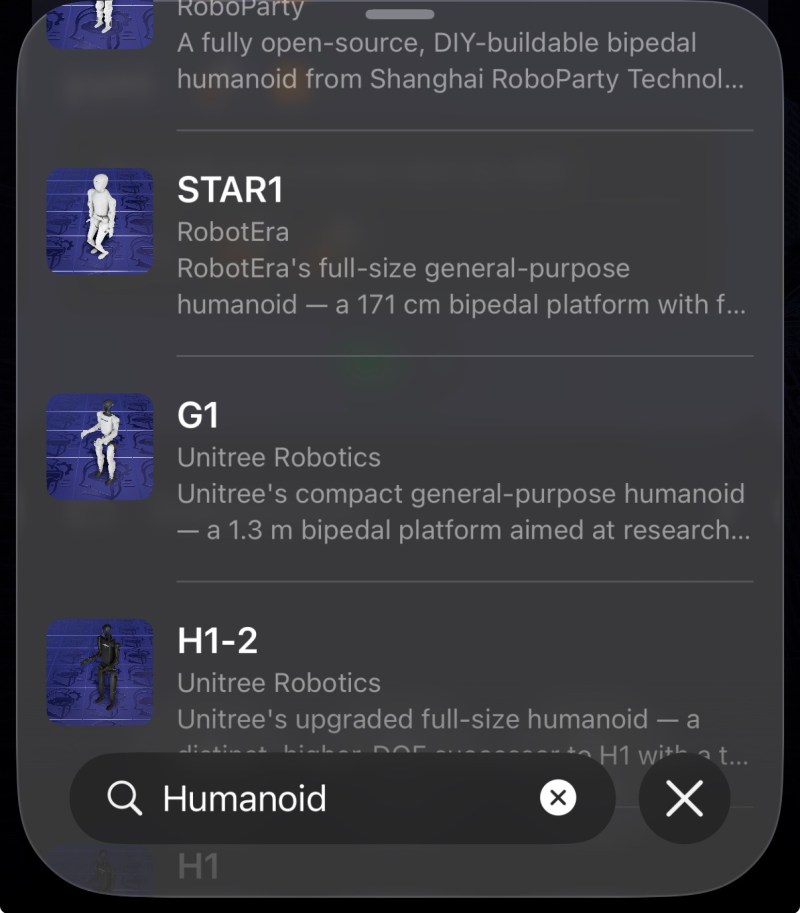
The gallery from the last post started on the website, with an “Open in ARMOR” link. In v1.2, Import from Gallery is a third option in the sidebar’s import flow, next to file and directory import. It shows a searchable list of every robot in the gallery with thumbnails, so you no longer need to open a link from outside the app to start an import. The gallery docs cover both ways in.
Xacro expansion also now works on the standard file import path, not only on gallery deep links, so a .xacro file picked from disk expands on the device. Along the way, a lot of real-world robots got fixed:
- NASA/JPL’s Perseverance and Ingenuity now import with their
glTFmeshes, and shared textures are downloaded once instead of once per mesh. - Several FANUC robots, including the CRX-10iA, import correctly after a negative number in the Xacro source was being treated as text.
- The Doosan M1013 now renders in its real white finish instead of solid red.
- The Techman TM5-900 imports without crashing, and its mesh dropped from 2,350 parts to 4 after matching submeshes were merged correctly.
- iCub imports, and its collision shapes now line up with the visual mesh instead of appearing about 1000 times too large.
- HighTorque Robotics’ Mini Hi, Mini Pi and Mini Pi+ import and compile, and Kawasaki’s BX300L imports from its Xacro source.
Mimic Joints Now Work in Simulation
A URDF <mimic> tag says one joint follows another: the second finger of a gripper matches the first, for example. ARMOR has always read and saved it correctly, and it showed up fine in the XML tab, but in simulation the mimicking joint just fell or swung on its own. MuJoCo ignores tags it does not recognize, and there is no MJCF equivalent of <mimic>.
In v1.2, mimic joints are translated into real MuJoCo equality constraints when the robot loads, so the multiplier and offset are honored when you press Play (the joints page lists the cases ARMOR skips). The one thing worth sharing for anyone doing this by hand: in MuJoCo’s joint equality constraint the first joint is the dependent one, which is the reverse of how most of us would read it. A mimic is a rigid mechanical coupling, so I also made the constraint stiffer than MuJoCo’s default, which matters on robots like Modena Robotics’ MR-3 Mini, where the tool plate is kept level by a parallelogram built from several stacked mimic joints.

Make Things Bounce, and See the Joints
MuJoCo’s contacts do not bounce by default, so a Bouncing Ball dropped from a height just lands and stops. The World editor’s solver settings now include Override Contact Parameters, with fields for Time Constant, Damping Ratio, Friction μ and Friction μ₂. I named them exactly what MuJoCo calls them, so what you type is what reaches the engine. It is a scene-wide setting that applies to every contact while it is on, which is why friction is included. The contact parameters page has the details, and the Bouncing Ball and Bouncing Pelota examples are the quickest way to try it.

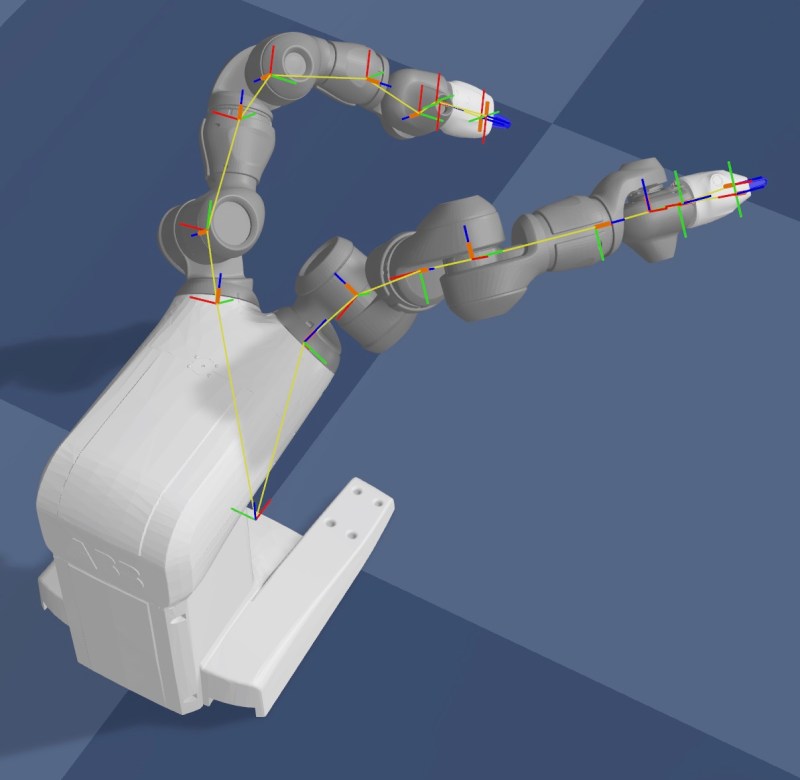
The view options menu also has a new Joints toggle, which shows each joint’s parent and child frames, the connecting line and the active axis as a skeleton overlay. It scales to the size of the robot, follows the joints during simulation (including on a free-floating base), and works for every robot in a multi-robot scene.
Fixes and Refinements
A grouped list of a few other changes from ARMOR v1.2, in addition to its built-in docs and AI assistant:
- Semantic group states: activated states now reliably reapply to the 3D view after you reorder, remove or add them.
- Multi-robot scenes: a second robot is now placed correctly with the right boundary conditions, and exported projects keep two robots with the same mesh filenames separate.
- Controllers: controllers added to some robots, such as the Double Pendulum example, now drive the simulated joints (they used to appear in the XML but have no effect), and activating a semantic group state updates the controller target along with the joint position, so the pose no longer snaps back when you press Play.
- Camera: the position now persists correctly, and there is a camera reset button.
- Materials: links with multiple materials, and DAE meshes with several material slots, are assigned correctly.
- Sidebar: sort “Your Robots” by name, creation date or modification date, and the choice is remembered.
- XML tab: the MJCF preview is quicker, and it now works for robots whose own URDF hard-codes a mesh directory.
- Smaller things: the Play button no longer starts and pauses on a double tap, solver error messages show real apostrophes and line breaks, and a crash in the mimic editor on the Mac is fixed.
Where ARMOR Goes Next
ARMOR v1.2 reduces the robotics simulation learning curve via its built-in docs and AI assistant. The next release, v1.3, is already underway and is mostly about quality of life: clearer error messages that explain in plain language what went wrong and suggest a fix, and caching of meshes so your robots load faster, along with a handful of smaller improvements. In the meantime, if you try the new estimator or controllers on a robot of your own, I would like to hear how it goes. Download ARMOR on the App Store, browse the gallery, and keep watching this blog.
Check out more posts about ARMOR
- 100+ URDF Models, High Quality and Simulation-Ready in the New AR Mobile Robotics Gallery
- Gallery Deep Links, Native Xacro Support, and ROS 2 Control Actuators; ARMOR v1.1 Release Notes
- ARMOR Arrives on Mac with Native MuJoCo Simulation Across All Your Apple Devices
- Multi-Robot MuJoCo Worlds on iOS, ARMOR is Live on the App Store!
- URDF to MuJoCo Export and Simulation Worlds; ARMOR v0.12 Release Notes
- Universal 3D Model Export to USDZ, GLB, DAE, OBJ, and STL; ARMOR v0.11 Release Notes
- Native SRDF Editing on iOS and Robot XML Export; ARMOR v0.10 Release Notes